AZ-802 Study Guide: Bridging On-Prem AD with Entra ID (Part 4): A Step-by-Step Entra Connect Lab
Learn to configure Entra Connect Sync in a Hyper-V home lab. Sync users to Microsoft Entra ID, configure PHS, and resolve soft-match errors
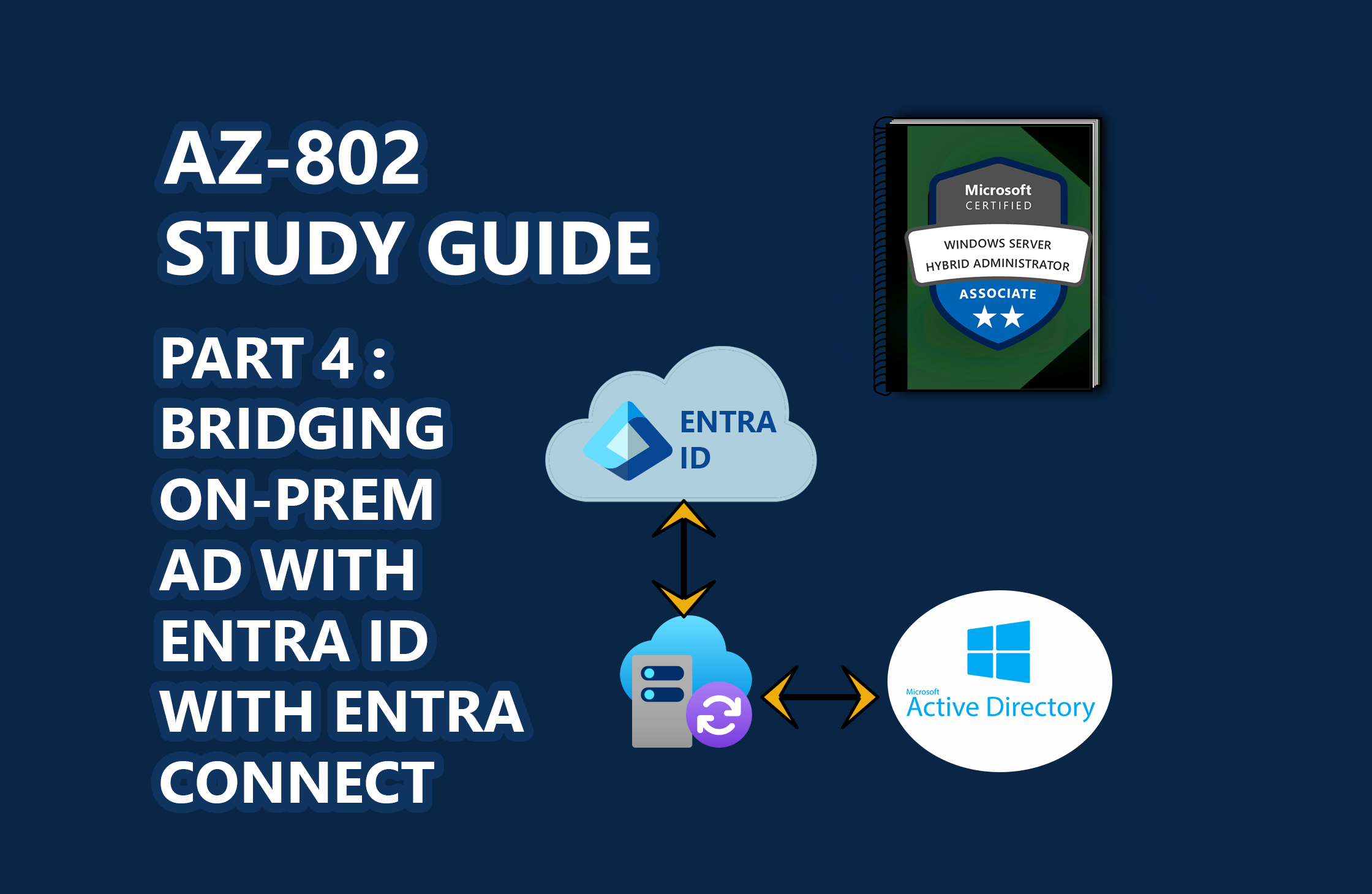
📖 AZ-802 Study Series: This is Part 4 of my hands-on lab series leading up to the Microsoft AZ-802 exam. To see the preceding steps, check out Part 3: Automating Replica Domain Controller Promotion, Part 2: Automating Windows Server Lab Setup, and Part 1: Building a Multi-DC Active Directory Forest, or check out The Ultimate Guide to Windows Server Hybrid Administrator Associate (AZ-802) Study Guide for the complete roadmap.
Modern enterprise architectures are rarely on-premises only. Establishing a hybrid identity infrastructure is a core requirement of the Microsoft AZ-802 syllabus. This involves bridging your local Active Directory domain (lab.reprodev.local) with a cloud-based Microsoft Entra ID tenant.
In this guide, we will walk through setting up Microsoft Entra Connect Sync in a home lab environment, configuring security baselines like Password Hash Synchronization (PHS), triggering sync intervals via PowerShell, and resolving the common "soft-matching" vs. "hard-matching" conflict gotchas.
🎓 Exam Alignment (Hybrid Directory Identity Services):
Designing, configuring, and managing Microsoft Entra Connect Sync is a major testing focus under the "Deploy and Manage Active Directory Domain Services" domain of the AZ-802: Configuring Windows Server Hybrid Advanced Services exam. You are expected to know:
- Authentication Methods: Comparing and configuring Password Hash Synchronization (PHS), Pass-Through Authentication (PTA), and Federated Authentication (AD FS).
- Seamless SSO: Implementing Kerberos-based Seamless Single Sign-On for corporate network users.
- Sync Scope Filtering: Restricting directory synchronization to specific Organizational Units (OUs) or domain subsets.
- Diagnostics & Troubleshooting: Identifying sync health via the Synchronization Service Client (
miisclient.exe) and resolving duplication/matching conflict errors (soft-matching vs. hard-matching).
The Identity Architecture
In a standard Entra Connect configuration, the local Active Directory acts as the single source of truth:
graph LR
    LocalAD["Local AD (lab.reprodev.local)"] -->|Entra Connect Sync| CloudEntra["Cloud Microsoft Entra ID"]
    LocalAD -.->|Password Hash Sync| CloudEntra
- Source of Authority: User creation, group memberships, and password resets are performed in the local Active Directory and synced outbound to Entra ID.
- Password Hash Synchronization (PHS): A hash of your user's password hash is sent securely to the cloud. Users log into cloud portals (Office 365, Azure Console) using their exact same on-premises credentials.
- Seamless SSO: Allows users on domain-joined corporate computers to log in automatically without re-typing their passwords when connected to the office network.
Step 1: Preparing Your On-Premises AD
Before installing the sync client, you must configure your local environment for clean identity replication:
1. Add a Public UPN Suffix
If your local domain uses a non-routable extension (like lab.reprodev.local), Entra ID cannot use it as a login identifier. You must register a routable public domain (e.g., reprodev.com) as an alternative UPN suffix:
- Open Active Directory Domains and Trusts.
- Right-click the root node and select Properties.
- Add your public domain name to the UPN Suffixes list.
2. Isolate Sync Users into a Dedicated OU
To keep your sync scope clean, create a dedicated Organizational Unit (OU) named SyncUsers:
New-ADOrganizationalUnit -Name "SyncUsers" -Path "DC=lab,DC=reprodev,DC=local"
Move any users you wish to replicate into this OU. Ensure their User Principal Name (UPN) matches your public domain prefix (e.g., [email protected]).
Step 2: Deploying Entra Connect Sync
- Create a free Microsoft 365 Developer tenant or register a standard trial to get a sandbox Entra ID directory.
- Log into the Microsoft Entra Admin Center as Global Administrator.
- Download the Microsoft Entra Connect installer (
AzureADConnect.msi) onto a domain-joined member server. - Launch the installer and select Custom Settings:
- User Sign-In: Select Password Hash Synchronization and check Enable single sign-on.
- Connect to Entra ID: Authenticate using your cloud Global Administrator account.
- Connect Directories: Add your local forest and provide an enterprise admin account to generate the sync service account.
- Azure AD UPN Suffix: Verify your public domain matches and is listed as Verified.
- Filtering: Select Synchronize selected OUs and check only the
SyncUsersOU.
- Click Install to start the initial sync cycle.
Step 3: Triggering Sync Cycles via PowerShell
By default, Entra Connect synchronizes changes every 30 minutes. When troubleshooting user creations, waiting half an hour is inefficient. Use this sync management script to check status, trigger delta syncs, and verify UPN mappings:
# ENTRA CONNECT SYNC MANAGER & DIAGNOSTICS UTILITY
# Brand: Reprodev
# Run this from an Administrator PowerShell console on your Entra Connect sync server.

# Check if ADSync module is installed
if (-not (Get-Module -ListAvailable -Name ADSync)) {
    Write-Warning "ADSync module not found. Please install Entra Connect on this server first."
    exit
}
Import-Module ADSync -ErrorAction Stop

# 1. Display Sync Schedule Status
Write-Host "=== Sync Scheduler Status ===" -ForegroundColor Cyan
Get-ADSyncScheduler | Select-Object AllowedSyncCycleInterval, SyncCycleEnabled, NextSyncCycleStartTimeInUTC

# 2. Trigger a Delta Sync Cycle
Write-Host "=== Triggering Delta Sync Cycle ===" -ForegroundColor Green
Start-ADSyncSyncCycle -PolicyType Delta
Troubleshooting Gotcha: The Matching Trap
If a user account already exists in Entra ID (e.g., created manually in the cloud) and you attempt to sync a local user with the same UPN, the sync engine will attempt to bind them.
Soft-Matching (UPN / Email Binding)
The sync engine matches the cloud user to the local user automatically if they share the same UserPrincipalName or ProxyAddresses (SMTP).
- The Trap: If soft-matching is disabled or fails due to a write-back error, sync will block, producing a
Duplicate AttributeorDirectory Sync Errorin your Entra admin console.
Hard-Matching (ImmutableID Injection)
If soft-matching fails, you must force a hard bind by calculating the local Active Directory user's ObjectGUID and writing it directly to the cloud user's OnPremisesImmutableId attribute:
# 1. Retrieve the GUID of the local AD User
$guid = (Get-ADUser -Identity "jdoe" -SearchBase "OU=SyncUsers,DC=lab,DC=reprodev,DC=local").ObjectGUID

# 2. Convert the raw GUID to a Base64 string (ImmutableID format)
$immutableId = [Convert]::ToBase64String($guid.ToByteArray())

# 3. Write the ImmutableID directly to the cloud user (requires Microsoft.Graph.Users module)
Connect-MgGraph -Scopes "User.ReadWrite.All"
Update-MgUser -UserId "[email protected]" -OnPremisesImmutableId $immutableId
Once the OnPremisesImmutableId matches, run Start-ADSyncSyncCycle -PolicyType Delta again. The local account will bind instantly to the cloud account.
Key Takeaways
- Verify UPNs First: Always make sure local users have a routable, verified public domain prefix before syncing them.
- PHS is Low Overhead: Password Hash Sync is the simplest, most resilient way to establish single credential logins for lab setups.
- Hard-Matching Resolves Blocked Syncs: Convert local
ObjectGUIDparameters to Base64 strings to resolve duplicate attribute conflicts programmatically.
Don't forget to explore the rest of our website as we build out more content. Stay tuned for more tutorials, tips, and tricks to help you make tech work for you.
If you want to stay up-to-date with regular updates, make sure to subscribe to our free mailing list.