📖 AZ-802 Study Series: This is Part 5 of my hands-on lab series leading up to the Microsoft AZ-802 exam. To see the preceding steps, check out Part 4: Bridging On-Prem AD with Entra ID, Part 3: Automating Replica Domain Controller Promotion, Part 2: Automating Windows Server Lab Setup, and Part 1: Building a Multi-DC Active Directory Forest, or check out The Ultimate Guide to Windows Server Hybrid Administrator Associate (AZ-802) Study Guide for the complete roadmap.
If there's one topic that ties the entire Microsoft AZ-802 hybrid syllabus together, it's Azure Arc. Before you can patch a server with Azure Update Manager, stream its logs into Azure Monitor, apply a security baseline with Azure Policy, or protect it with Microsoft Defender for Cloud, the machine first has to exist inside the Azure control plane. Azure Arc is what puts it there.
Azure Arc projects your on-premises (or other-cloud) physical and virtual machines into Azure Resource Manager (ARM) as first-class resources with the type Microsoft.HybridCompute/machines. Once a server carries an Azure resource ID, the whole catalogue of native Azure governance and management services can target it — without moving the workload anywhere. That is why I am treating Arc as its own foundational part of this series: nearly everything that follows (Part 6 onward) depends on it.
In this guide we will automate onboarding for Windows and Linux hosts using a service principal, verify the connection, and then use the two capabilities the exam cares about most on top of Arc: device configuration via Azure Policy and VM extensions on non-Azure machines.
🎓 Exam Alignment (Azure Arc–enabled servers):
Onboarding and managing hybrid servers with Azure Arc sits in the "Manage Windows Server instances and workloads by using Azure services in a hybrid environment" objective of the AZ-802: Administering Windows Server Hybrid Infrastructure exam. Arc underpins three of the five bullets in that objective, so you must understand:
- Implement Azure Arc–enabled Windows Server instances: Installing and registering the Connected Machine Agent (
azcmagent), interactively and at scale, using a service principal holding the least-privilege Azure Connected Machine Onboarding role.- Implement device configuration by using Azure Arc: Applying Azure machine configuration (formerly Azure Policy Guest Configuration) to audit and enforce in-guest OS settings — the cloud equivalent of Group Policy for hybrid machines.
- Deploy Azure services with VM extensions on non-Azure machines: Installing extensions such as the Azure Monitor Agent or Custom Script Extension onto Arc-enabled servers.
- Troubleshoot Azure Arc extension issues: Reading the Connected Machine Agent and machine configuration logs when onboarding or extensions fail.
Architecture: Azure Arc as the Hybrid Control Plane
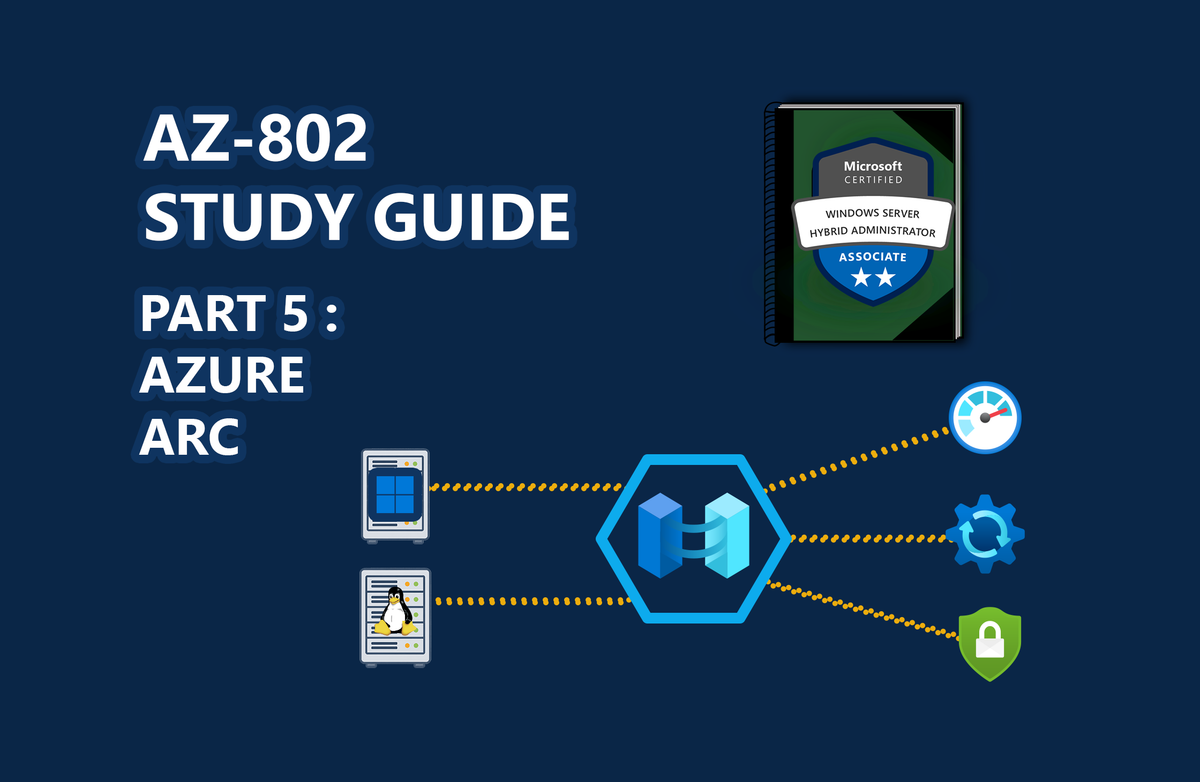
The mental model to lock in for the exam is a hub and spoke. The Connected Machine Agent on each local server dials outbound to the Arc control plane, which registers the machine in ARM. From there, native Azure services fan back out to the same machines:
graph TD
    subgraph Local Homelab
        WinVM["REPRO-DC01 (Windows Server)"] -->|Connected Machine Agent| Arc["Azure Arc Control Plane (ARM)"]
        LinVM["repro-linux01 (Ubuntu)"] -->|Connected Machine Agent| Arc
    end
    subgraph Azure Cloud
        Arc --> Policy["Azure Policy / Machine Configuration"]
        Arc --> AUM["Azure Update Manager"]
        Arc --> Monitor["Azure Monitor"]
        Arc --> Defender["Microsoft Defender for Cloud"]
    end
The single most important operational fact: the agent communicates strictly outbound over TCP 443 to a defined set of Azure endpoints. There are no inbound firewall rules to open, which is what makes Arc palatable in security-sensitive environments.
Step 1: Registering the Required Resource Providers
Before your subscription can accept Arc machines and govern them, three resource providers must be registered. If you onboard through the portal they are registered for you, but scripting them makes the process repeatable:
# Run in an Azure Cloud Shell or a session authenticated with Connect-AzAccount
foreach ($rp in @(
    "Microsoft.HybridCompute",       # Arc-enabled servers (Microsoft.HybridCompute/machines)
    "Microsoft.HybridConnectivity",  # SSH / connectivity endpoints for Arc
    "Microsoft.GuestConfiguration"   # Azure machine configuration (device configuration)
)) {
    Register-AzResourceProvider -ProviderNamespace $rp
}
Step 2: Creating the Onboarding Service Principal
To register many servers without interactive logins, create a service principal scoped to the least-privilege Azure Connected Machine Onboarding role. This identity is used only during onboarding — never for ongoing management:
# Requires the Az.Resources module and an authenticated Azure PowerShell session
$sp = New-AzADServicePrincipal `
    -DisplayName "arc-onboarding-sp" `
    -Role "Azure Connected Machine Onboarding"

$sp | Format-Table AppId, @{ Name = "Secret"; Expression = { $_.PasswordCredentials.SecretText } }
[!NOTE]
The generated secret is valid for one year. Record the AppId (used for--service-principal-id) and the Secret (used for--service-principal-secret); the secret is only shown once. Scope the role to your target resource group or subscription — not the whole tenant.
The Azure CLI equivalent is az ad sp create-for-rbac --name "arc-onboarding-sp" --role "Azure Connected Machine Onboarding" --scopes "/subscriptions/<subscription-id>".
Step 3: Onboarding the Servers
Option A — Interactive (a single server)
For a one-off lab box, install the agent and connect interactively. azcmagent connect will prompt you to authenticate in a browser with device login:
# Elevated PowerShell on the target Windows server
$DownloadPath = Join-Path $env:TEMP "AzureConnectedMachineAgent.msi"
Invoke-WebRequest -Uri "https://aka.ms/AzureConnectedMachineAgent" -OutFile $DownloadPath -UseBasicParsing
Start-Process msiexec.exe -ArgumentList "/i `"$DownloadPath`" /qn /norestart" -Wait

& "$env:ProgramFiles\AzureConnectedMachineAgent\azcmagent.exe" connect `
    --resource-group "rg-hybrid-fleet" `
    --tenant-id "your-tenant-uuid" `
    --subscription-id "your-subscription-uuid" `
    --location "westeurope"
Option B — At scale with the service principal
For the fleet, use the service principal so no human interaction is required. This is the utility script from this series — run it from an elevated console on each target Windows server:
# AZURE ARC FLEET ONBOARDING UTILITY
# Brand: Reprodev
# Run this from an elevated Administrator PowerShell console on the target server.

# 1. Configuration Variables
$TenantId            = "your-tenant-uuid"
$SubscriptionId      = "your-subscription-uuid"
$ResourceGroup       = "rg-hybrid-fleet"
$Location            = "westeurope"
$ServicePrincipalId  = "your-service-principal-app-id"
$ServicePrincipalSecret = "your-service-principal-secret"

# 2. Download the Connected Machine Agent installer
$DownloadPath = Join-Path $env:TEMP "AzureConnectedMachineAgent.msi"
Invoke-WebRequest -Uri "https://aka.ms/AzureConnectedMachineAgent" -OutFile $DownloadPath -UseBasicParsing

# 3. Install the MSI package
Start-Process msiexec.exe -ArgumentList "/i `"$DownloadPath`" /qn /norestart" -Wait

# 4. Register the machine with Azure Arc using the service principal
$AzcmagentPath = Join-Path $env:ProgramFiles "AzureConnectedMachineAgent\azcmagent.exe"
& $AzcmagentPath connect `
    --service-principal-id $ServicePrincipalId `
    --service-principal-secret $ServicePrincipalSecret `
    --resource-group $ResourceGroup `
    --tenant-id $TenantId `
    --subscription-id $SubscriptionId `
    --location $Location `
    --tags "Owner=Reprodev","Environment=Lab"
Linux hosts
The same service principal onboards Linux. Download the universal installer and connect with matching flags (run as root):
# On the target Linux server
wget https://aka.ms/azcmagent -O ~/install_linux_azcmagent.sh
bash ~/install_linux_azcmagent.sh

sudo azcmagent connect \
    --service-principal-id "your-service-principal-app-id" \
    --service-principal-secret "your-service-principal-secret" \
    --resource-group "rg-hybrid-fleet" \
    --tenant-id "your-tenant-uuid" \
    --subscription-id "your-subscription-uuid" \
    --location "westeurope"
💡 For domain-joined fleets, the portal can also generate a Group Policy–based onboarding package, and Configuration Manager or Ansible can drive it — but the service principal + script pattern above is the most portable across mixed Windows/Linux labs.
Step 4: Verifying the Connection
Confirm the agent's health locally and in the portal:
# Show the machine's Arc identity and resource ID
& "$env:ProgramFiles\AzureConnectedMachineAgent\azcmagent.exe" show

# Run the connectivity pre-flight check against required endpoints
& "$env:ProgramFiles\AzureConnectedMachineAgent\azcmagent.exe" check
azcmagent show should report Agent Status: Connected. In the portal, open Azure Arc → Machines (or aka.ms/hybridmachineportal) and confirm the server appears with a green Connected status.
Step 5: Device Configuration with Azure Machine Configuration
This is the exam's "implement device configuration by using Azure Arc" bullet — and the closest cloud analogue to Group Policy for hybrid machines. Azure machine configuration (formerly Azure Policy Guest Configuration) uses Desired State Configuration (DSC) under the hood to audit or enforce in-guest OS settings, then rolls compliance up to a single Azure dashboard.
A crucial exam detail: on Arc-enabled servers the machine configuration capability is built into the Connected Machine Agent — you do not deploy the separate Guest Configuration extension that Azure VMs require.
To apply a baseline:
- In the portal, go to Policy → Definitions and filter category to Guest Configuration.
- Pick a built-in definition — for example "Windows machines should meet requirements for the Azure compute security baseline" or "Configure secure communication protocols (TLS 1.2) on Windows machines".
- Assign it, scoped to the resource group holding your Arc machines. Any
Microsoft.HybridCompute/machinesresources in scope are automatically included. - For
DeployIfNotExists/Configurepolicies, create a remediation task so noncompliant machines are corrected via DSC.
Unlike GPOs, which bind to AD OUs, an Azure Policy assignment targets an Azure scope (subscription / resource group / machine) — so servers that aren't in the same OU, or aren't even domain-joined, can still share one baseline.
Step 6: Deploying VM Extensions on Non-Azure Machines
The final foundational capability — "deploy Azure services with VM extensions on non-Azure machines" — is how downstream services actually reach the guest OS. VM extensions are small management agents that Azure installs and lifecycle-manages on the Arc machine. Common ones you will meet later in this series include:
- AzureMonitorWindowsAgent / AzureMonitorLinuxAgent — the Azure Monitor Agent (used in Part 9 for log collection).
- CustomScriptExtension — run a post-onboarding configuration script.
- DependencyAgent — service maps for VM Insights.
Install one against an Arc machine from the CLI:
az connectedmachine extension create `
    --machine-name "REPRO-DC01" `
    --resource-group "rg-hybrid-fleet" `
    --name "AzureMonitorWindowsAgent" `
    --publisher "Microsoft.Azure.Monitor" `
    --type "AzureMonitorWindowsAgent"
You can also add extensions interactively from the machine's Extensions blade in the portal. Because extensions are managed by Azure, they redeploy automatically after an agent reinstall or a region migration.
Key Gotcha: Resource Providers and Agent Logs
[!WARNING]
The two failures you are most likely to hit — and most likely to be tested on — are unregistered resource providers and a blocked outbound path.
- If onboarding fails immediately, confirm
Microsoft.HybridCompute,Microsoft.HybridConnectivity, andMicrosoft.GuestConfigurationare registered on the subscription (Step 1).- If the agent installs but cannot connect, re-run
azcmagent connect ... --verboseand inspect the log at%ProgramData%\AzureConnectedMachineAgent\Log\azcmagent.log(Windows) or/var/opt/azcmagent/log/azcmagent.log(Linux). Behind a proxy, set the path withazcmagent config set proxy.url.- For machine configuration / extension problems, the DSC logs live under
C:\ProgramData\GuestConfig\arc_policy_logs\gc_agent.log.
Key Takeaways
- Arc is the foundation, not a feature: A server must be Arc-enabled before Update Manager, Azure Monitor, Azure Policy, or Defender for Cloud can touch it. Master onboarding first and the rest of the AZ-802 hybrid domain falls into place.
- Least privilege by design: The Azure Connected Machine Onboarding role grants only enough to register agents, and the service principal is used solely during onboarding — a clean, scriptable, auditable pattern for fleets.
- Machine configuration is GPO for the cloud: Azure machine configuration audits and enforces in-guest settings across domain-joined and standalone hybrid hosts from one Azure dashboard, and needs no extra extension on Arc servers.
Don't forget to explore the rest of our website as we build out more content. Stay tuned for more tutorials, tips, and tricks to help you make tech work for you.
If you want to stay up-to-date with regular updates, make sure to subscribe to our free mailing list.